
Dark Mode, A Dark Hole?

Dark Mode, A Dark Hole?
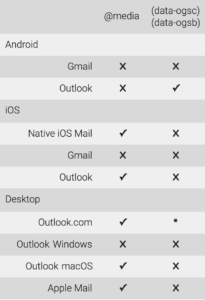
*(data-ogsc) (data-ogsb) only partially works for Outlook.com
If you are building emails, I am sure that you’re well versed in designing for various clients. I am also fairly certain that you have run into issues when designing for “Dark Mode”. By using the following CSS you can target many email clients using dark mode.
@media (prefers-color-scheme: dark)
Similar to the way a block of styles inside an @media query works in Mobile Responsive view. The difference here is the CSS block, which targets all user interfaces that are in Dark Mode.
[data-ogsc] and/or [data-ogsb]
Used to target the application version of Outlook. While it may look like a minute market share, simply copy the @media (prefers-color-scheme: dark) styles you already used and add the proper [data-ogsc] and/or [data-ogsb] prefixes to each CSS rule.
With all of that said, there are always exceptions. (see right)
The Code
Enabling Dark Mode in the Email Client
Including this metadata in your tag, to ensure that Dark Mode is enabled for all subscribers that use Dark Mode:
<meta name=”color-scheme” content=”light dark”>
<meta name=”supported-color-schemes” content=”light dark”>
Support that metadata: add this CSS.
Dark Mode for @media (prefers-color-scheme: dark)
For Apple Mail, iOS, Outlook.com, Outlook App (iOS), Outlook 2019 (MacOS): embed the following in your .
Example:
@media (prefers-color-scheme: dark ) {
/* Shows Dark Mode-Only Content*/
.dark-img { display:block !important; width: auto !important; overflow: visible !important; float: none !important; max-height:inherit !important; max-width:inherit !important; line-height: auto !important; margin-top:0px !important; visibility:inherit !important; }
/* Hides Light Mode-Only Content*/
.light-img { display:none; display:none !important; }
/* Custom Dark Mode Background Color */
.darkmode { background-color: #f3f3f3 !important; }
/* Custom Dark Mode Font Colors */
h1, h2, p, span, a, b { color: #ffffff !important; }
/* Custom Dark Mode Text Link Color */
.link { color: #91ADD4 !important; }
}
Duplicate Dark Mode Styles With [data-ogsc] and/or [data-ogsb]
For the Android Outlook app.
Example CSS:
/* Shows Dark Mode-Only Content*/
[data-ogsc] .dark-img { display:block !important; width: auto !important; overflow: visible !important; float: none !important; max-height:inherit !important; max-width:inherit !important; line-height: auto !important; margin-top:0px !important; visibility:inherit !important; }
/* Hides Light Mode-Only Content*/
[data-ogsc] .light-img { display:none; display:none !important; }
/* Custom Dark Mode Background Color */
[data-ogsc] .darkmode { background-color: #272623 !important; }
/* Custom Dark Mode Font Colors */
[data-ogsc] h1, [data-ogsc] h2, [data-ogsc] p, [data-ogsc] span, [data-ogsc] a, [data-ogsc] b { color: #ffffff !important; }
/* Custom Dark Mode Text Link Color */
[data-ogsc] .link { color: #91ADD4 !important; }
Apply Styles to Your Body HTML
Ensure that your HTML tags have the necessary Dark Mode classes.
Example HTML:
<!-- start HEADER_LOGO -->
<a href="tacticalma.com" target="_blank">

<img class="light-img" src="tacticalma.com" width="163" height="60" alt="TacticalMA" style="color: #ffffff; text-align:center; font-weight:bold; font-size:36px; line-height:40px; text-decoration: none; margin: 0 auto; padding: 0;" border="0" />

<!-- The following Dark Mode image is hidden
with MSO conditional code and inline CSS.
Revealed once Dark Mode is triggered -->

<!--[if !mso]><!--><div class="dark-img" style="display:none; overflow:hidden; float:left; width:0px; max-height:0px; max-width:0px; line-height:0px; visibility:hidden;" align="center">
<img src="tacticalma.com" width="163" height="60" alt="TacticalMA" style="color: #ffffff; text-align:center; font-weight:bold; font-size:36px; line-height:40px; text-decoration: none; margin: 0 auto; padding: 0;" border="0" />
</div><!--<![endif]-->

</a>
<!-- end HEADER_LOGO -->
Don’t know what HTML or CSS means? Pass these tips on to your developer or agency and save yourself a struggle.
A final note:
ALWAYS TEST YOUR MESSAGES BEFORE YOU SEND THEM
Philip Easley-Bosley is the founder of Tactical Marketing and a thirty-year expert marketing consultant. His path to founding the firm ran through sales and marketing leadership, years inside Act-On Software consulting with thousands of clients as Lead Marketing Automation Strategist, and a consistent priority on training and team building that a linear career could not have produced. He sets strategy, owns the architectural calls on every engagement, and writes about marketing operations, automation, and the discipline of building systems that hold up on Monday morning.